Thanks for everyone who attended my session last Saturday. Below is a link to the deck.
https://skydrive.live.com/redir?page=view&resid=4A75F44C18CFBFF5!3187&authkey=!AEHUI_-dZn3a2Ck
Feel free to post questions, and I will do my best to respond in a timely manner.
Enjoy the fall colors.
~ Kristin Cameron
Tuesday, October 8, 2013

Thursday, January 31, 2013
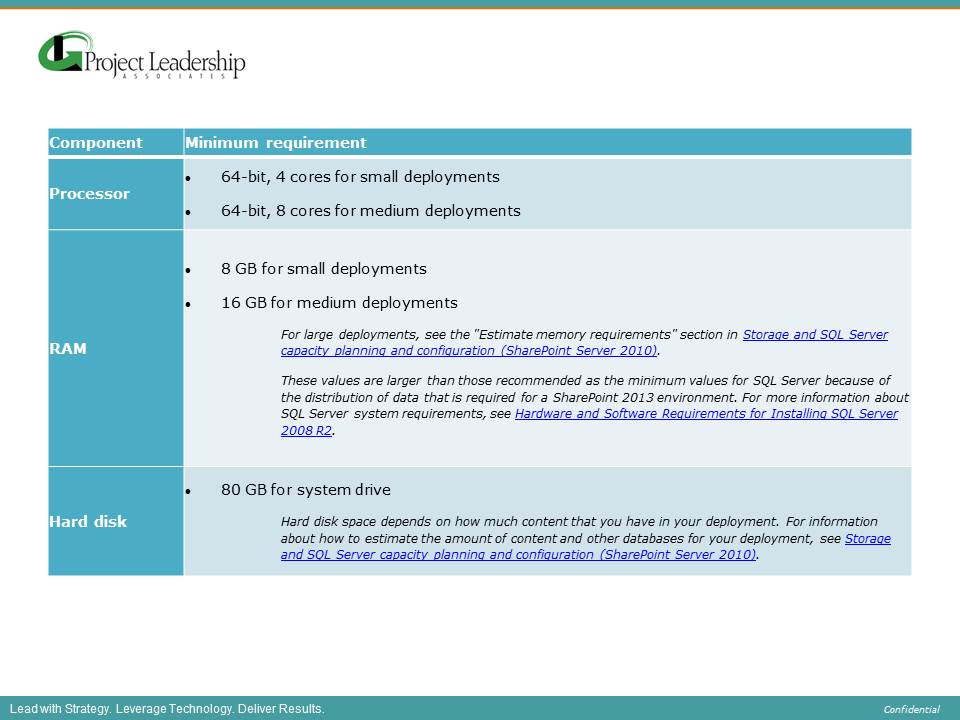
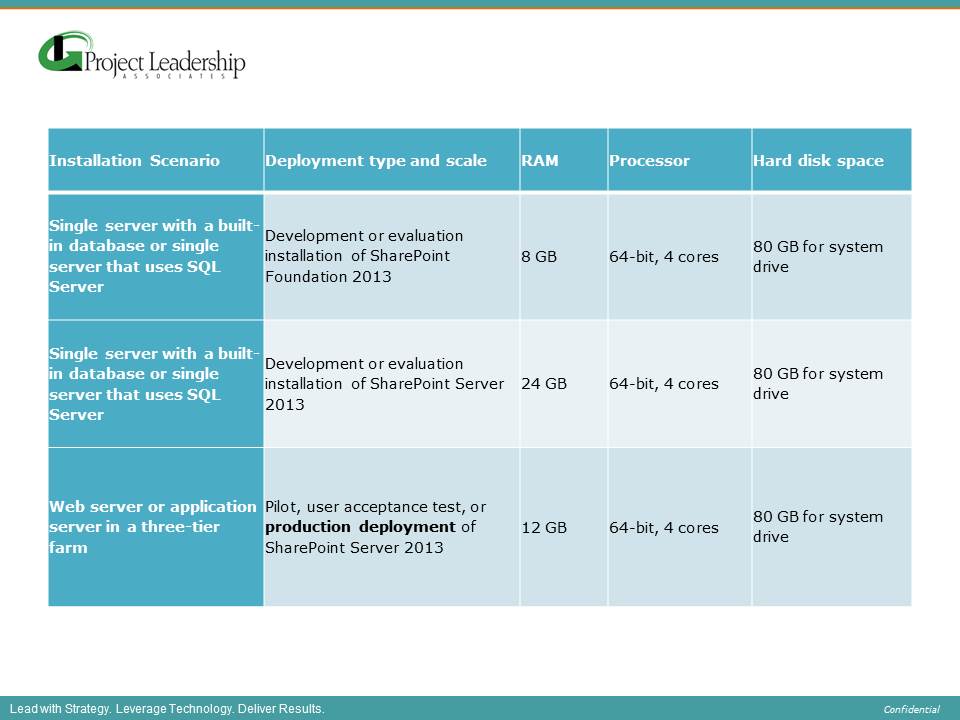
SharePoint 2013 Hardware & Software Requirments
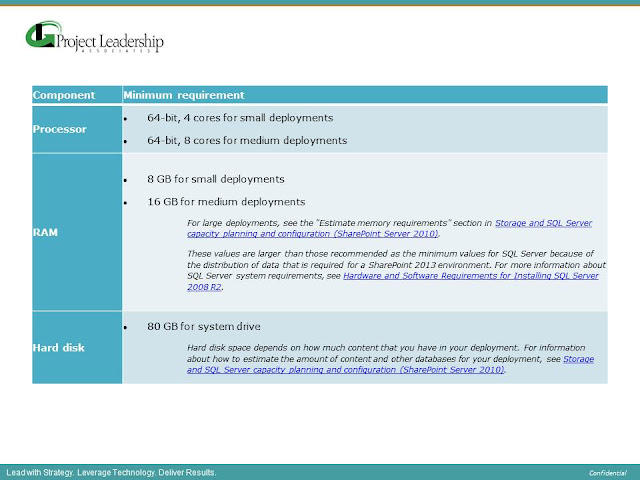
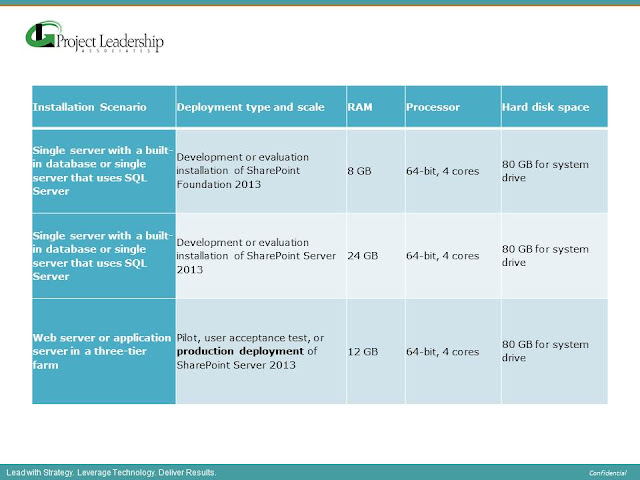
Rather than digging through and compiling Microsoft documentation, here are the hardware & software requirements for SharePoint 2013, all in one place.
Enjoy! ~ Kristin Cameron


Enjoy! ~ Kristin Cameron


How to put an icon into a SharePoint calendar view
How to put an icon into a SharePoint calendar view
Working on a customized calendar project, the client
requested the following:
v If an executive will be attending an event, put
an icon, such as a star, to the left of the event title, in Calendar view.
It sounds straightforward, but in SharePoint, there are
often limitations to work around. In
this case, there were two limitations.
One being, that there really are no “icons” in SharePoint 2010. Two being you can only have one field showing
in the month view. My original thought
was to place the icon next to the Title field, but with only one field choice
allowed, that wouldn't work.
What you can do; however, is insert ASCII into a text or calculated
field. There are a limited number of
ASCII codes for images, but there are plenty of arrows, stars, crosses, etc. to
choose from. So, what I did was created
a new calculated field, that was a concatenation of a star, pasted from an
ASCII star (if the conditions were met) and the Title field.
The result looked like this:

You can have a lot of fun with this.
Enjoy!
Kristin Cameron, Managing Consultant
Project Leadership Associates
Project Leadership Associates
Monday, September 17, 2012
How to Color Code a SharePoint Calendar
There is no OOB way to Color Code a SharePoint
calendar. Bamboo has a web part for
purchase; however, this web part has limited functionality and it makes
significant changes to the look & feel of the calendar.
In order to simply change the color of the calendar entries,
based on a column value, modify the JavaScript at the end of this blog to meet your
needs.
1. Create a document library for your code, such
as, https://my.sharpoint.com/sites/MySite/CodeLib/ and copy jquery-1.5.1.js
there
2. Modify the first line of code to point to the
location of your document library: <script
type="text/javascript" src="https://my.sharpoint.com/sites/MySite/CodeLib/jquery-1.5.1.js"></script>
3. Create a column in the Calendar list, called “MyCategory.”
4. Modify the switch/case section of the javascript
to the categories in your list, and choose the colors you would like:
var
colour = null;
switch (category.trim().toLowerCase())
{
case 'custom category 1':
colour = "#7bd148";
break;
case 'custom category 2':
colour = "#f691b2";
break;
case 'custom category 3':
colour = "#fbe983";
break;
case 'custom category 4':
colour = "#9a9cff";
break;
}
return colour;
5. Save the .js file
in a document library within the site collection (make sure all users have READ access to this document)
6. Create a hidden
web part that references this .js file
7. Create a calculated
field with ="|||"&MyCategory&"|||"&Title
8. Create a calendar
view choose the new Calculated field (from step 5) for Month View Title, Week
View Title, etc. (instead of the default “Title”)
JavaScript
<script type="text/javascript"
src="https://my.sharpoint.com/sites/MySite/CodeLib/jquery-1.5.1.js"></script>
<script
type="text/javascript">
_spBodyOnLoadFunctionNames.push('WaitForCalendarToLoad');
var
SEPARATOR = "|||";
function
WaitForCalendarToLoad() {
if (typeof SP.UI.ApplicationPages.CalendarNotify.$4a == 'undefined') {
// post SP1
var pwold$4b = SP.UI.ApplicationPages.CalendarNotify.$4b;
SP.UI.ApplicationPages.CalendarNotify.$4b = function() {
pwold$4b();
ColourCalendar();
}
SP.UI.ApplicationPages.SummaryCalendarView.prototype.renderGrids =
function($p0) {
var $v_0 = new Sys.StringBuilder();
var $v_1 = $p0.length;
for (var $v_2 = 0; $v_2 < $v_1; $v_2++) {
this.$7t_2($v_2,
$p0[$v_2]);
}
for (var $v_3 = 0; $v_3 < $v_1; $v_3++) {
$v_0.append('<div>');
this.$I_2.$7o($v_0,
$p0[$v_3], $v_3);
$v_0.append(this.emptY_DIV);
$v_0.append('</div>');
}
this.setInnerHtml($v_0.toString());
ColourCalendar();
}
}
else {
// pre SP1
var pwold$4a = SP.UI.ApplicationPages.CalendarNotify.$4a;
SP.UI.ApplicationPages.CalendarNotify.$4a = function() {
pwold$4a();
ColourCalendar();
}
SP.UI.ApplicationPages.SummaryCalendarView.prototype.renderGrids =
function($p0) {
var $v_0 = new Sys.StringBuilder();
var $v_1 = $p0.length;
for (var $v_2 = 0; $v_2 < $v_1; $v_2++) {
this.$7r_2($v_2,
$p0[$v_2]);
}
for (var $v_3 = 0; $v_3 < $v_1; $v_3++) {
$v_0.append('<div>');
this.$I_2.$7m($v_0,
$p0[$v_3], $v_3);
$v_0.append(this.emptY_DIV);
$v_0.append('</div>');
}
this.setInnerHtml($v_0.toString());
ColourCalendar();
}
}
}
function ColourCalendar() {
if (jQuery('a:contains(' + SEPARATOR + ')') != null) {
jQuery('a:contains(' + SEPARATOR + ')').each(function(i) {
$box = jQuery(this).parents('div[title]');
var colour = GetColourCodeFromCategory(GetCategory(this.innerHTML));
//this.innerHTML = GetActualText(this.innerHTML);
this.innerHTML = "<span style='color:#000000'>" +
GetActualText(this.innerHTML) + "";
jQuery($box).attr("title",
GetActualText(jQuery($box).attr("title")));
$box.css('background-color', colour);
});
}
}
function GetActualText(originalText) {
var parts = originalText.split(SEPARATOR);
return parts[0] + parts[2];
}
function GetCategory(originalText) {
var parts = originalText.split(SEPARATOR);
return parts[1];
}
function GetColourCodeFromCategory(category) {
var colour = null;
switch (category.trim().toLowerCase()) {
case 'custom category 1':
colour = "#7bd148";
break;
case 'custom category 2':
colour = "#f691b2";
break;
case 'custom category 3':
colour = "#fbe983";
break;
case 'custom category 4':
colour = "#9a9cff";
break;
}
return colour;
}
</script>
Happy
Color Coding!
-
Kristin Cameron, Managing Consultant
Project Leadership Associates
Project Leadership Associates
Subscribe to:
Posts (Atom)